
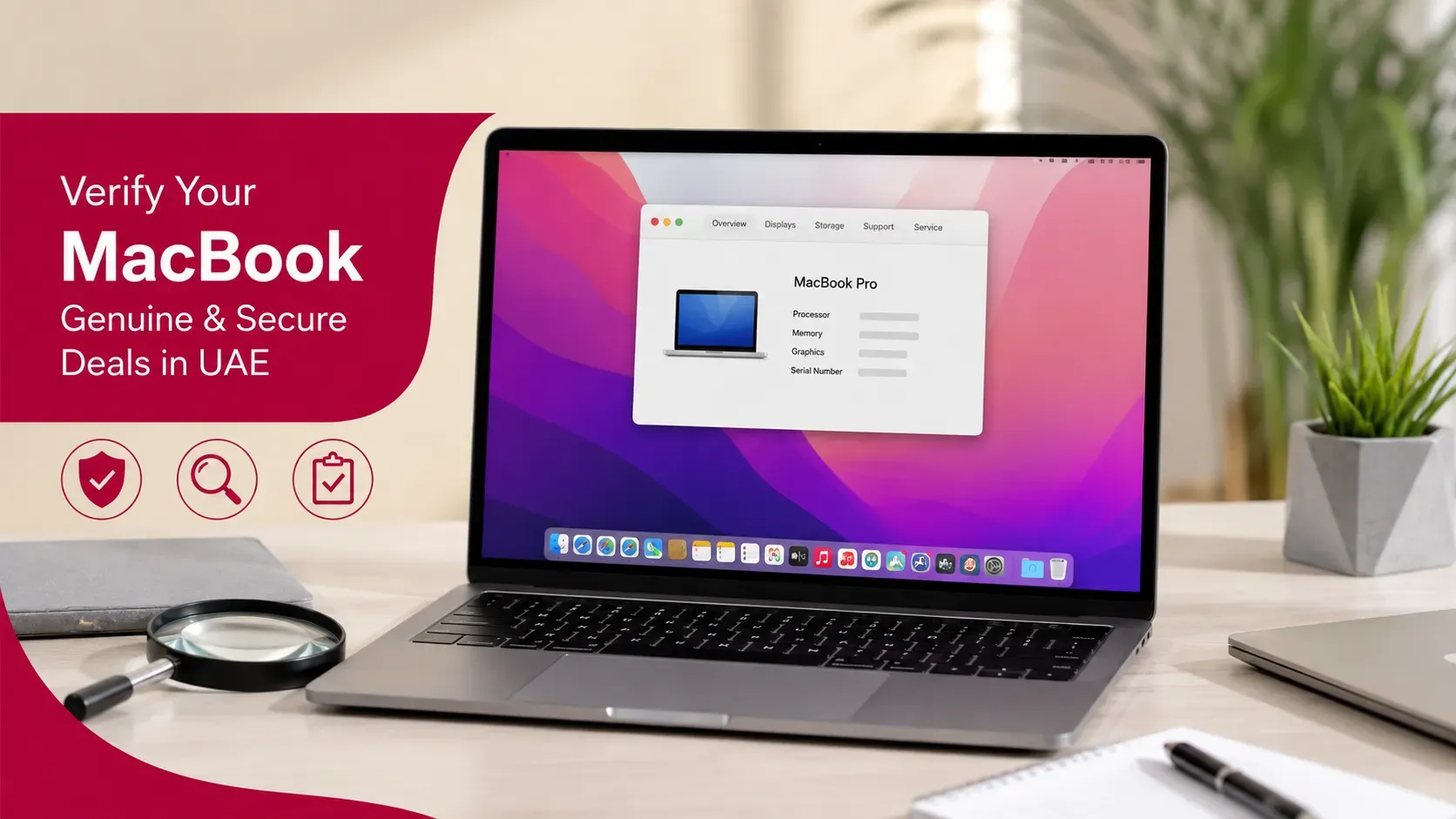
If you are buying or selling a used MacBook in the UAE, checking that the device is genuine should be part of the transaction. A MacBook can look authentic externally while still having incorrect specifications, unexpected repairs, account restrictions or other issues that are not obvious from photographs.
The safest approach is to verify several details together rather than relying on one serial-number check.
You can compare the MacBook's serial number, model, chip, memory, storage, System Information, AppleCare or warranty information, physical hardware and account status. Apple provides several built-in tools that make these checks possible.
For sellers, verification also helps provide accurate information to potential buyers and avoid disputes over specifications.
Quick Answer: How Do You Verify a MacBook Is Genuine?
The best way to verify a MacBook is genuine is to compare information from multiple independent sources.
Check:
- Serial number
- MacBook model
- Chip or processor
- Memory and storage
- System Information
- AppleCare or warranty status
- Physical hardware
- Original packaging and documentation, if available
- Apple Account and Activation Lock status
Apple confirms that a Mac's serial number can be found through About This Mac, System Information, the device itself and its original packaging.
A serial number that appears in Apple's systems is useful, but it should not be treated as the only proof of authenticity.
Why Should You Verify a MacBook Before Buying or Selling?
For buyers, verification helps establish whether the MacBook being advertised actually matches the device being offered.
You want to avoid situations where:
- The advertised model is incorrect
- The chip does not match the listing
- Storage or memory has been misrepresented
- The device has unexpected hardware issues
- The Mac remains linked to another Apple Account
- A seller cannot explain inconsistencies between the Mac and its packaging
For sellers, the same checks can work in your favour.
Having accurate information about your MacBook makes it easier to answer buyer questions, create an honest listing and establish its value.
If you are preparing to sell, you can check your MacBook's value in the UAE after confirming the exact configuration and condition.
1. Check the MacBook Serial Number
The serial number is one of the first details you should check.
On a MacBook, Apple provides several ways to locate it, including:
- Apple menu and About This Mac
- System Information
- The device itself
- Original packaging
Apple's current support documentation confirms these locations and notes that Apple serial numbers use the numbers 0 and 1 rather than the letters O and I.
Once you have the serial number, compare it with the information available for the device.
Do not stop at this step.
A serial number should be treated as one part of the verification process, not as conclusive proof by itself.
2. Check the MacBook Model and Configuration
Next, confirm exactly what MacBook you are buying or selling.
Check:
- MacBook Air or MacBook Pro
- Screen size
- Model generation
- Chip
- Memory
- Storage
- Model identifier
Open Apple menu > About This Mac to view key information about the computer.
Apple's current Mac resources also explain that System Information provides detailed information about the installed hardware, memory, storage, software and network configuration.
This is particularly important when a listing claims to offer a high-spec MacBook.
For example, if a listing says a MacBook has 24GB of memory and 1TB of storage, check the actual system information before paying.
If you need a deeper explanation of Apple's identifiers, see MacBook Model Number vs Serial Number: What Sellers Should Know.
3. Use System Information for a Deeper Check
About This Mac gives you a quick overview, but System Information provides considerably more detail.
On current macOS versions, you can open it through:
Apple menu > System Settings > General > About > System Report
Apple says System Information provides a detailed report covering hardware installed on or connected to the Mac, as well as software and other system information.
This can help you compare the actual computer against the seller's description.
Pay particular attention to:
- Hardware model
- Memory
- Storage
- Processor or chip information
- Connected hardware
- Operating system information
The purpose is not to inspect every technical field. Focus on the specifications that were used to advertise the MacBook.
4. Check AppleCare and Warranty Information
Warranty information can provide another useful verification point.
On a Mac, Apple says you can check AppleCare and warranty information through:
Apple menu > System Settings > General > AppleCare & Warranty
You can also access coverage information through Apple's support system.
Compare the coverage information with what the seller has told you.
For example, if a seller says the MacBook has remaining AppleCare coverage, ask to see the actual coverage information.
However, warranty status should not be considered absolute proof that a MacBook is genuine. It is simply another piece of information that should agree with the rest of your checks.
5. Compare the MacBook With Its Original Box
If the original packaging is available, compare the information on the box with the actual MacBook.
Look for consistency between:
- Serial number
- Model information
- Configuration
- Purchase documentation
A mismatch does not automatically prove that a MacBook is fake. Packaging can become separated from devices, especially with used products.
However, unexplained inconsistencies should prompt further questions before you complete the transaction.
A genuine seller should normally be able to explain where the box or documentation came from.
6. Inspect the Physical MacBook
Software checks should be combined with a physical inspection.
Compare the actual MacBook with the model being advertised.
Check:
- Display
- Keyboard
- Trackpad
- Ports
- Speakers
- Camera
- Hinges
- Casing
- Charging connection
- Bottom panel
You can compare these details with Apple's official specifications for the claimed model.
Also look for obvious signs that the device may have been heavily repaired or modified.
Apple's current support resources explain that Mac repair information and, on supported systems, parts and service history can provide additional information about previous repairs.
A genuine MacBook can still have third-party repairs or replaced components, so authenticity and repair history are separate questions.
7. Check Apple Account and Activation Lock Status
This is one of the most important checks when buying a used MacBook.
A Mac can be completely genuine but still be unusable to a new owner if it remains protected by Activation Lock.
Apple explains that Activation Lock on supported Macs is linked to Find My. The Apple Account password or device passcode may be required to turn off Find My, erase the Mac or reactivate it.
Before buying a used MacBook, make sure the previous owner has properly removed the device from their account.
Apple specifically recommends turning off Find My before selling, giving away or trading in a Mac because doing so automatically removes Activation Lock.
If the seller cannot remove the lock, do not complete the transaction simply because the Mac has a valid serial number.
Can a Genuine MacBook Still Have a Problematic Part?
Yes.
This is particularly important with repaired MacBooks.
Apple's current support documentation explains that certain previously used parts can themselves be linked to another person's Apple Account through Activation Lock. In those cases, the part may require unlocking before it can be properly configured.
This means checking the overall device is important, especially if the MacBook has previously been repaired.
A genuine Apple MacBook and a completely original, unrepaired MacBook are not necessarily the same thing.
Can a Fake MacBook Have a Real Serial Number?
A serial-number check alone should not be considered sufficient proof of authenticity.
The stronger approach is to compare several details:
Serial number + model + chip + memory + storage + System Information + physical hardware + Apple coverage + account status
When these details consistently match, you have much stronger evidence that the device is what the seller claims.
If several details conflict, stop and investigate before paying.
Warning Signs When Buying a Used MacBook
Be particularly careful if:
- The price is far below comparable MacBooks
- The seller refuses to show About This Mac
- Specifications do not match System Information
- Serial numbers differ without a clear explanation
- The seller will not allow reasonable inspection
- The device remains linked to another Apple Account
- The seller pressures you to pay immediately
- The Mac cannot be properly erased or prepared for transfer
- The seller refuses to provide basic information about the device
None of these signs automatically proves that a MacBook is counterfeit.
However, several warning signs appearing together should make you reconsider the transaction.
How Sellers Can Prove Their MacBook Is Genuine
If you are selling a MacBook, you can make the verification process easier for serious buyers.
Prepare:
- Exact model information
- Chip details
- RAM and storage information
- Serial number
- AppleCare or warranty status, if applicable
- Original packaging, if available
- Purchase documentation, if available
- Clear photographs of the device
- Confirmation that your Apple Account has been removed
Being transparent can reduce unnecessary negotiation because the buyer has more confidence in the device.
Before handing over the MacBook, ensure that your personal account and data have been properly removed.
What Should You Do If the Details Do Not Match?
Do not ignore inconsistencies.
If you are buying:
- Stop before making payment.
- Ask the seller about the discrepancy.
- Recheck the serial number.
- Open About This Mac.
- Review System Information.
- Compare the physical device with the advertised model.
- Check AppleCare or warranty information where relevant.
- Confirm that Activation Lock has been removed.
- Walk away if the seller cannot reasonably explain the inconsistencies.
If you are selling and discover incorrect information in your listing, correct it before continuing with the transaction.
Accurate information protects both parties.
Key Takeaways
- A serial number alone is not enough to verify a MacBook.
- Check the model, chip, memory and storage inside macOS.
- Use System Information for a deeper hardware check.
- Compare the MacBook with its original packaging and documentation where available.
- Check AppleCare or warranty information separately.
- Inspect the physical device for inconsistencies or repair evidence.
- Make sure Activation Lock has been removed before buying a used MacBook.
- A genuine MacBook can still contain replaced or locked components.
- Multiple matching verification points provide much stronger confidence than one serial-number check.
Frequently Asked Questions
How can I check if a MacBook is genuine?
Check its serial number, model, chip, memory, storage, System Information, physical hardware and Apple coverage information. Also make sure it is not protected by Activation Lock.
Can I verify a MacBook using the serial number?
The serial number is an important check, but it should not be the only verification method. Compare it with the actual model and system-reported specifications.
Where can I find a MacBook serial number?
Apple says the serial number can be found in About This Mac, System Information, on the Mac itself and on the original packaging.
How do I check the MacBook's specifications?
Open About This Mac for the basic model and chip information, then use System Information for a more detailed hardware report.
Can a genuine MacBook have replaced parts?
Yes. A genuine MacBook can have undergone repairs or component replacements. On supported Macs, parts and service information may provide additional clues about repair history.
Should I buy a MacBook that is still Activation Locked?
No. Ask the seller to remove the device from their Apple Account and disable Find My before completing the purchase. Apple explains that Activation Lock can prevent another person from reactivating the Mac.
Is an Apple warranty check proof that a MacBook is genuine?
It is a useful verification point, but it should be combined with serial number, model, system and physical checks.
Conclusion
Verifying a MacBook before buying or selling it in the UAE does not require complicated equipment. Most of the important checks can be completed directly through macOS and Apple's support resources.
Start with the serial number, then confirm the exact model and configuration through About This Mac and System Information. Compare those details with the physical device, original packaging and documentation where available. You can also check AppleCare or warranty information to confirm what coverage is currently associated with the device.
Most importantly, do not confuse authenticity with ownership status. A genuine MacBook can still be protected by Activation Lock or have a component associated with another Apple Account. Apple recommends disabling Find My before selling or transferring a Mac, which removes Activation Lock.
For buyers, taking a few extra minutes to verify the device can prevent an expensive mistake. For sellers, providing accurate specifications and clear verification information can make the transaction easier and build buyer confidence.
If you have verified your MacBook and are ready to move forward, sell your MacBook in Dubai after confirming its model, condition and configuration.
For sellers looking for a straightforward valuation and selling process, Sell My MacBook UAE provides a starting point for evaluating the device before completing the transaction.