
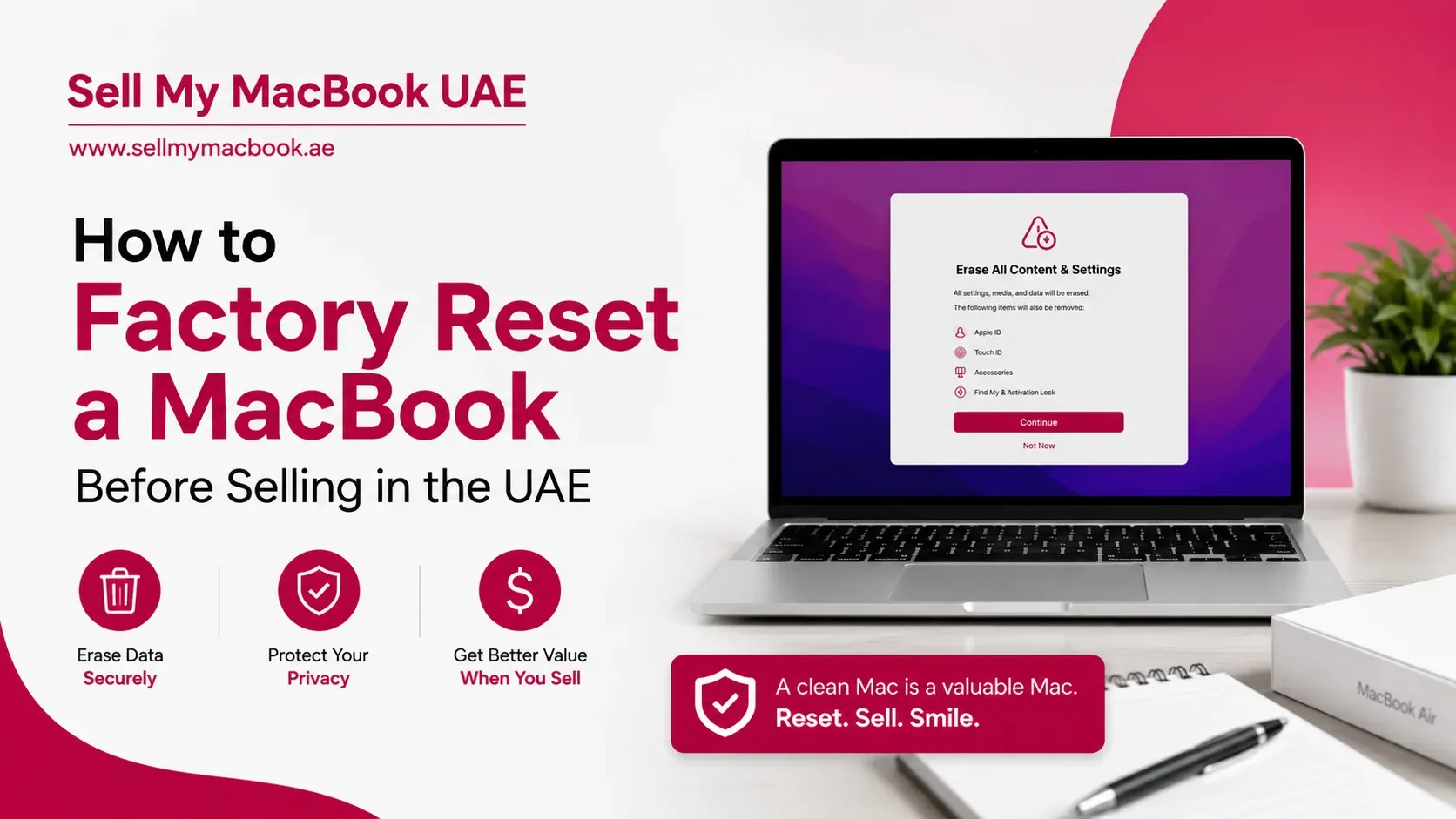
Selling your MacBook without properly erasing your personal information can create serious privacy and security risks. Your device may contain years of personal photos, work files, saved passwords, financial information, emails, and account credentials.
Simply dragging files to the Trash isn't enough. Before selling your MacBook in the UAE, you should perform a complete factory reset to ensure your data is removed and the device is ready for its next owner.
Whether you're upgrading to a newer MacBook Air, replacing a MacBook Pro, or no longer need your laptop, resetting it correctly is one of the most important steps in the resale process. This guide explains exactly how to factory reset a MacBook before selling and avoid common mistakes that many sellers make.
Quick Answer
Before selling a MacBook in the UAE, back up your files, sign out of iCloud, disable Find My Mac, remove personal accounts, and perform a factory reset. Apple Silicon MacBooks include an "Erase All Content and Settings" feature, while older Intel-based Macs require macOS Recovery. A proper reset protects your privacy and prepares the MacBook for its next owner.
Key Takeaways
- Always back up important files before erasing your MacBook
- Sign out of iCloud and disable Find My Mac
- Apple Silicon and Intel MacBooks use different reset methods
- Verify the reset was successful before selling
- Never hand over a MacBook that still contains personal information
- A properly reset MacBook creates a smoother experience for buyers
Why Factory Resetting Your MacBook Is Important
Many users assume deleting documents and signing out of applications is enough before selling a laptop. In reality, personal data can remain on the device if it isn't erased properly.
A factory reset helps protect sensitive information, remove saved passwords, browser history, financial information, and personal photos and files, prevent unauthorized access, and prepare the MacBook for a new owner. Whether you're selling privately or using a buyback service, factory resetting should never be skipped.
What Happens If You Don't Reset Your MacBook?
Failing to reset your MacBook can lead to several issues.
Personal data exposure. The next owner could potentially access saved passwords, email accounts, documents, photos, and browser history.
Activation Lock problems. If Find My Mac remains enabled, the new owner may be unable to activate the MacBook.
Difficult ownership transfer. A device that still contains your Apple ID can create complications long after the sale is complete.
For these reasons, Apple strongly recommends erasing the MacBook completely before transferring ownership.
Before You Factory Reset Your MacBook
There are several important tasks to complete before erasing the device.
Back up your files. Factory resetting permanently removes your data. Before continuing, create a backup using iCloud Drive, Time Machine, an external SSD or hard drive, or a cloud storage platform. Double-check that your files are safely stored elsewhere before proceeding.
Confirm your Apple ID information. You'll need your Apple ID email and password during the sign-out process.
Connect the charger. A factory reset shouldn't be interrupted, so keep the MacBook connected to power throughout the process.
Step 1: Sign Out of iCloud
The first step is removing your Apple account from the MacBook. To sign out: open System Settings, click your Apple ID, select Sign Out, and follow the prompts.
This disconnects services such as iCloud Drive, Photos, Messages, Contacts, and Notes, and helps ensure the next owner can activate the MacBook without issues.
Step 2: Disable Find My Mac
Find My Mac is part of Apple's Activation Lock system. While it provides valuable theft protection, it should be disabled before selling.
To disable it: open System Settings, select your Apple ID, open Find My settings, and turn off Find My Mac. You may be asked to enter your Apple ID password. Failure to disable this feature is one of the most common mistakes sellers make.
Step 3: Remove Apple Pay and Other Linked Services
Before resetting the MacBook, remove Apple Pay cards, stored payment information, business accounts, and professional software licenses. This helps ensure no personal accounts remain connected to the device.
Step 4: Identify Your MacBook Type
The reset process depends on the type of MacBook you own.
Apple Silicon MacBooks currently include:
MacBook Air
- 13-inch (M1, 2020)
- 13-inch and 15-inch (M2, 2022/2023)
- 13-inch and 15-inch (M3, 2024)
- 13-inch and 15-inch (M4, 2025)
- 13-inch and 15-inch (M5, 2026)
MacBook Pro
- 14-inch and 16-inch (M1 Pro/M1 Max, 2021)
- 14-inch and 16-inch (M2 Pro/M2 Max, 2023)
- 14-inch, 14-inch Pro, and 16-inch Pro/Max (M3 family, 2023)
- 14-inch, 14-inch Pro, and 16-inch Pro/Max (M4 family, 2024)
- 14-inch (M5, 2025) and 14-inch/16-inch (M5 Pro/Max, 2026)
Intel-based MacBooks are older MacBook Air and MacBook Pro models released before Apple Silicon. To check your processor, click the Apple logo and select About This Mac.
How to Factory Reset an Apple Silicon MacBook
Apple Silicon devices include a much simpler reset process using Erase All Content and Settings:
- Open System Settings
- Select General
- Click Transfer or Reset
- Choose Erase All Content and Settings
- Enter your administrator password
- Follow the prompts
The MacBook will automatically remove personal files, remove Apple ID information, delete saved settings, erase installed applications, and return the device to factory condition. For most modern MacBooks, this is the fastest and easiest method. Apple's own walkthrough on erasing your Mac and resetting it to factory settings covers each screen in more detail if you want to follow along.
How to Factory Reset an Intel MacBook
Intel-based Macs require the use of macOS Recovery.
Enter Recovery Mode
- Shut down the MacBook completely
- Press the power button
- Immediately hold Command (⌘) + R
- Continue holding until the Apple logo appears
Open Disk Utility
- Select Disk Utility
- Click Continue
Erase the startup disk
- Select the main startup drive
- Click Erase
- Choose APFS (or Mac OS Extended if required)
- Confirm the erase process
Reinstall macOS
- Close Disk Utility
- Select Reinstall macOS
- Follow the installation prompts
The MacBook will reinstall a clean version of macOS. Apple's official guide to reinstalling macOS is a useful reference if any step behaves differently on your specific model.
How to Verify the Reset Was Successful
Before selling the MacBook, restart the device and confirm the reset worked correctly.
You should see a language selection screen, a country selection screen, and the initial setup assistant. You should not see your Apple ID, personal files, user accounts, or saved passwords. If the setup assistant appears, the MacBook is ready for a new owner.
Common Factory Reset Mistakes
- Forgetting to back up important files. Once erased, your files may not be recoverable, so always verify your backup first.
- Leaving Find My Mac enabled. This is one of the most common causes of Activation Lock issues.
- Not signing out of iCloud. Leaving your Apple ID connected can complicate ownership transfer.
- Interrupting the reset process. Always keep the MacBook connected to power.
- Skipping verification. Confirm the setup screen appears before handing over the device.
What to Do After Resetting Your MacBook
Once the reset is complete: clean the device (remove dust, fingerprints, and smudges), gather accessories (original charger, charging cable, packaging, and receipt if available), and check device condition (screen, battery health, cosmetic wear, and storage configuration). This information helps create a more accurate valuation.
If you haven't already prepared your MacBook for resale, read our guide on how to prepare your MacBook before selling it in Dubai.
Ready to Sell Your MacBook?
Once the reset is complete, your MacBook is ready for its next owner. At this stage, it helps to confirm the exact model, check storage capacity, evaluate condition, and review battery health, since these factors all influence resale demand and valuation.
See what your MacBook is worth in Dubai using our free 60-second quote tool before deciding how you want to sell.
Frequently Asked Questions
Do I need to factory reset my MacBook before selling it?
Yes. A factory reset removes personal information and prepares the MacBook for a new owner.
Does deleting files erase everything?
No. Simply deleting files doesn't provide the same level of protection as a complete factory reset.
What happens if I forget to disable Find My Mac?
The next owner may encounter Activation Lock and be unable to activate the device.
Is the process different for Apple Silicon MacBooks?
Yes. Apple Silicon models include the Erase All Content and Settings feature, which simplifies the process significantly.
Can I sell my MacBook immediately after resetting it?
Yes. Once the setup screen appears and your personal information has been removed, the MacBook is ready for sale.
Final Thoughts
Factory resetting your MacBook is one of the most important steps to complete before selling.
A proper reset protects your personal information, removes account access, prevents activation issues, and ensures the next owner can set up the device without complications. Taking the time to follow the correct reset process helps create a smoother and more secure transaction. Sell My MacBook UAE offers a dedicated platform for Apple laptop valuations and purchases based on model, storage, and condition.